Creating and editing cables
Create and edit cables using Tether Editing Mode or Unreal Engine's standard spline tools.
Using Tether Editing Mode
Tether Editing Mode lets you create cables and edit their points, slack, and tangents. Start a new cable or resume placement on an existing cable, then use the same controls to place points, adjust slack, and set tangents.
Activating Editing Mode
Select Tether from Unreal Engine's Modes dropdown or use the appropriate shortcut keys.
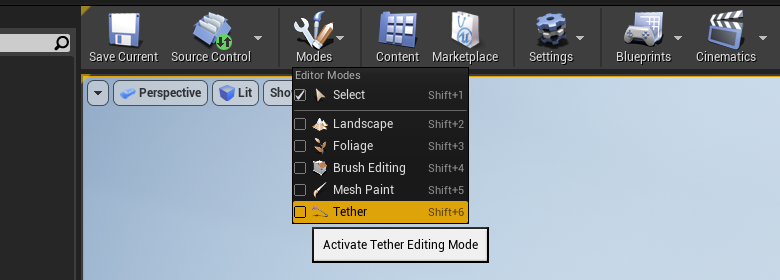
With Editing Mode active, use the mode panel to customize the properties of any new cables created from then on.
Starting a new cable
If Auto Start Cable is true, clicking in the viewport will start a new cable, otherwise Start New Cable must be clicked first.
When a new cable is started, a Tether Cable Actor is created and the first point will be placed in the world at the location that was clicked in the viewport.
Resuming placement on an existing cable
Select an existing cable to edit its spline points.
- Reposition a point: Right-click a spline point and choose Edit Point. Tether enters Editing Mode with that existing point ready to reposition.
- Continue the cable: Right-click a spline point and choose Continue Cable. Tether enters Editing Mode with a new point immediately after the selected point. Choose the final point to extend the cable, or an interior point to insert another point along its path.
Placing points
While placing a point, adjust the segment's slack and the point's tangent before continuing or finishing placement.
Adjusting slack
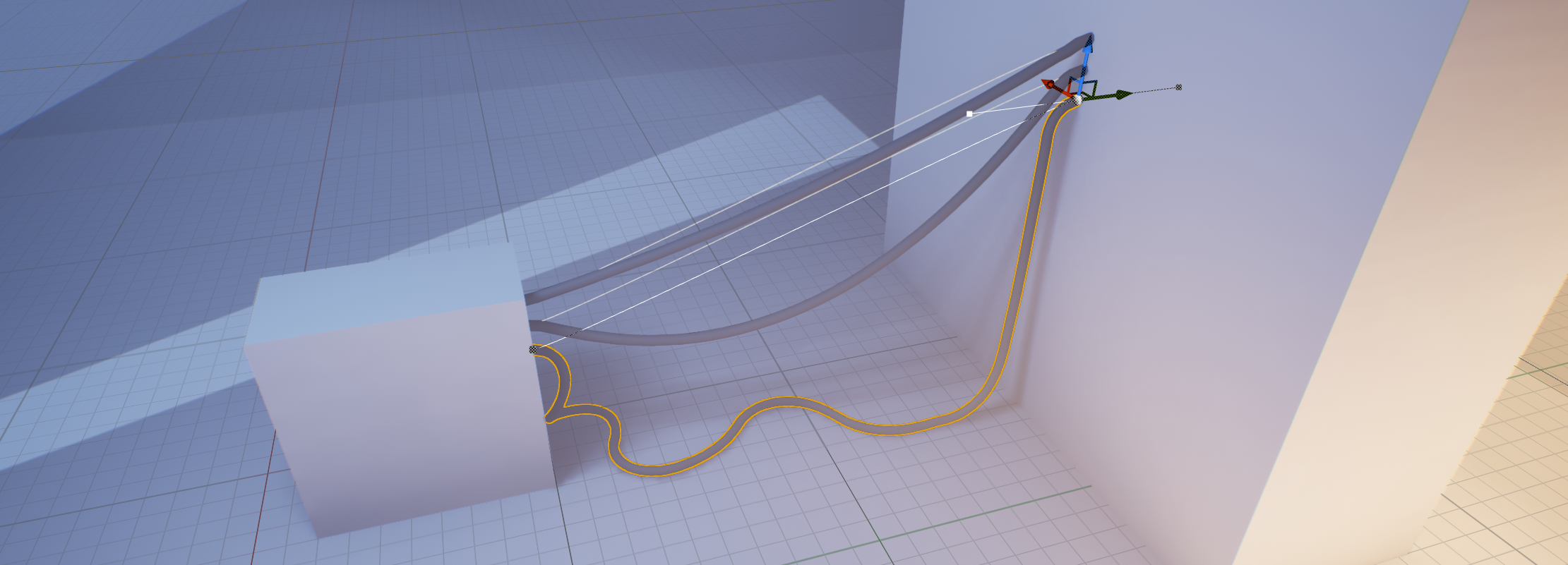
In Editing Mode, use the scroll wheel to adjust slack for the current segment before ending the segment. Hold Shift for finer adjustment.
Adjusting point tangents
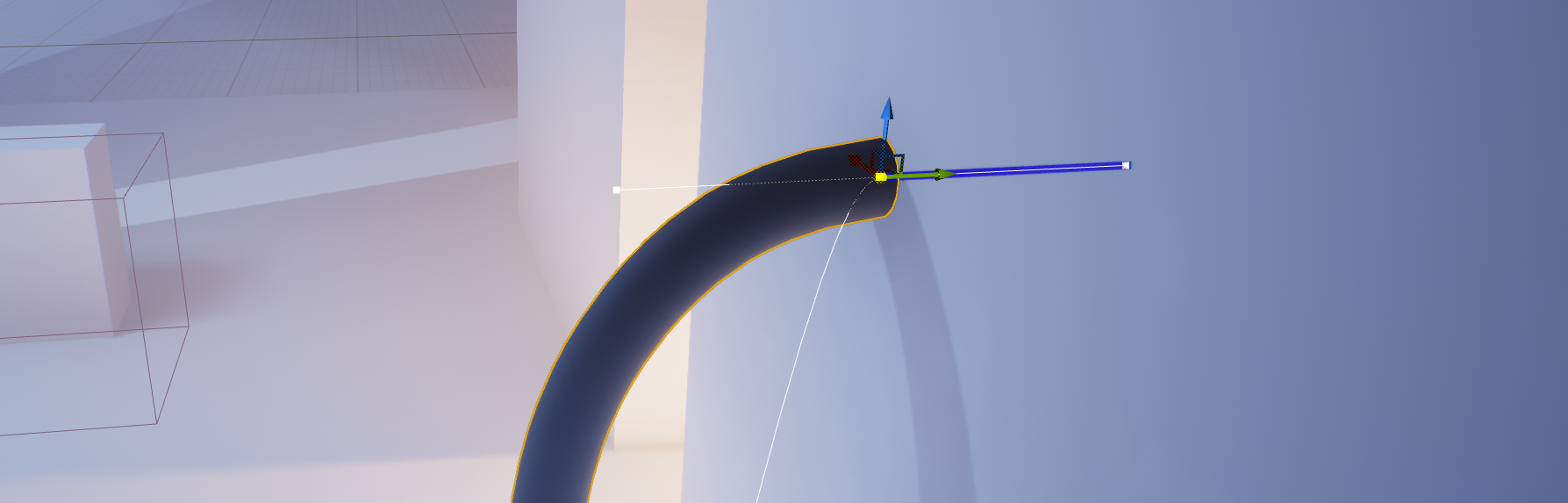
In Editing Mode, click and drag when placing a point to specify the direction or tangent of the cable along the surface. Hold Alt to align the tangent to the surface normal, which makes the cable appear fixed to the surface.
Continuing or finishing placement
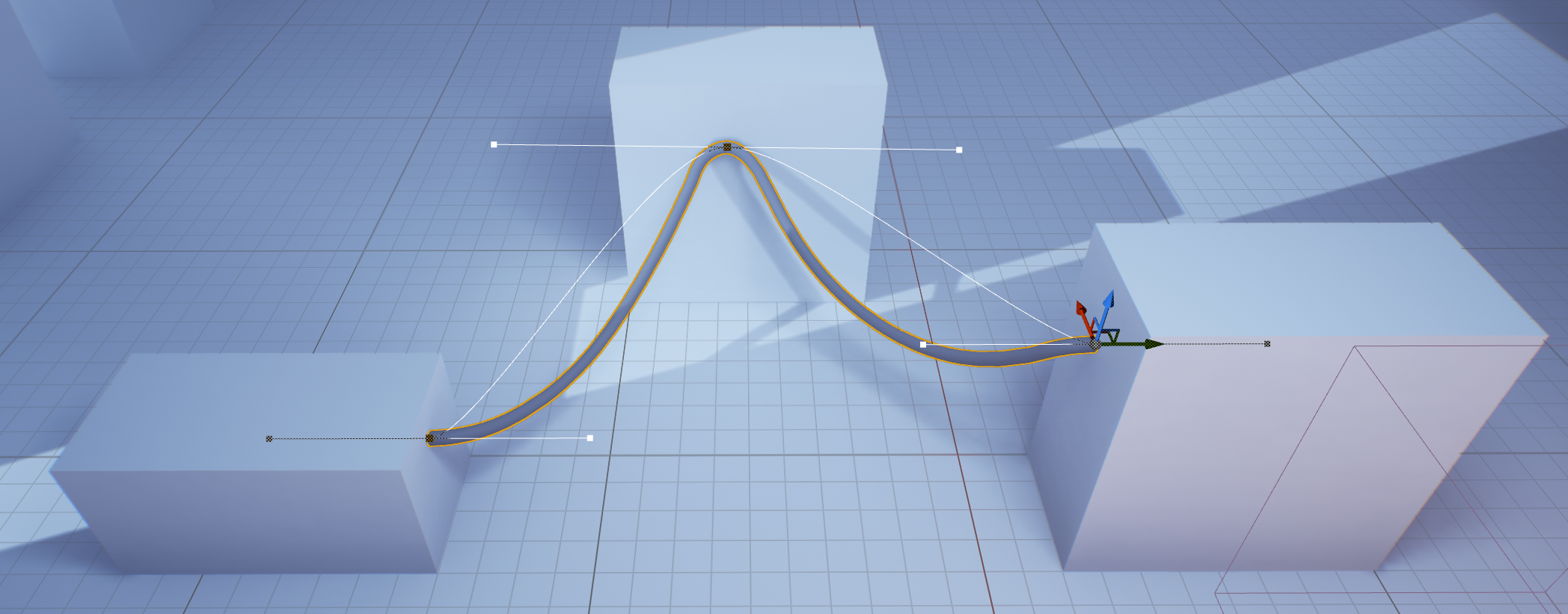
Click a location in the viewport to place the current point and finish placement.
To continue with another segment, instead Shift-click a location to place the current point and start a new segment.
Using Unreal's spline tools
Select an existing cable to edit its spline points using Unreal Engine's standard spline tools. These methods do not require Editing Mode:
- Move a point: Select a spline point and use the Move gizmo to reposition it.
- Insert a point: Right-click the spline line and choose Add Spline Point Here. Unreal inserts a point on that segment near the cursor. Use the Move gizmo to position it.
- Duplicate a point: Select a single spline point, then hold Alt and drag its Move gizmo to duplicate and position it.